Configure PowerShell autocomplete using PSReadLine
Configure PowerShell autocomplete using PSReadLine
Improving the PowerShell editing experience can greatly improve your productivity. PSReadLine, in a line, is a PowerShell module that does just that - it provides improved syntax coloring, better multi-line editing, autocomplete, etc.
INSTALL
PowerShell ships with PSReadLine, but run the following command to install the latest version:
1
Install-Module -Name PSReadLine -AllowClobber -Force
CONFIGURE
PSReadLine can be configured using a profile. A PowerShell profile is a PowerShell script file that’s executed when a PowerShell starts.
Create (or open) your profile
I recommend Visual Studio Code for almost all text editing, but any text editor (including notepad) would do:
1
code $profile
Update your profile
Add the following lines to your profile:
1
2
3
4
5
Set-PSReadlineKeyHandler -Key UpArrow -Function HistorySearchBackward
Set-PSReadlineKeyHandler -Key DownArrow -Function HistorySearchForward
Set-PSReadLineOption -PredictionSource HistoryAndPlugin # enable predictions
Set-PSReadLineOption -HistoryNoDuplicates # prevent duplicates
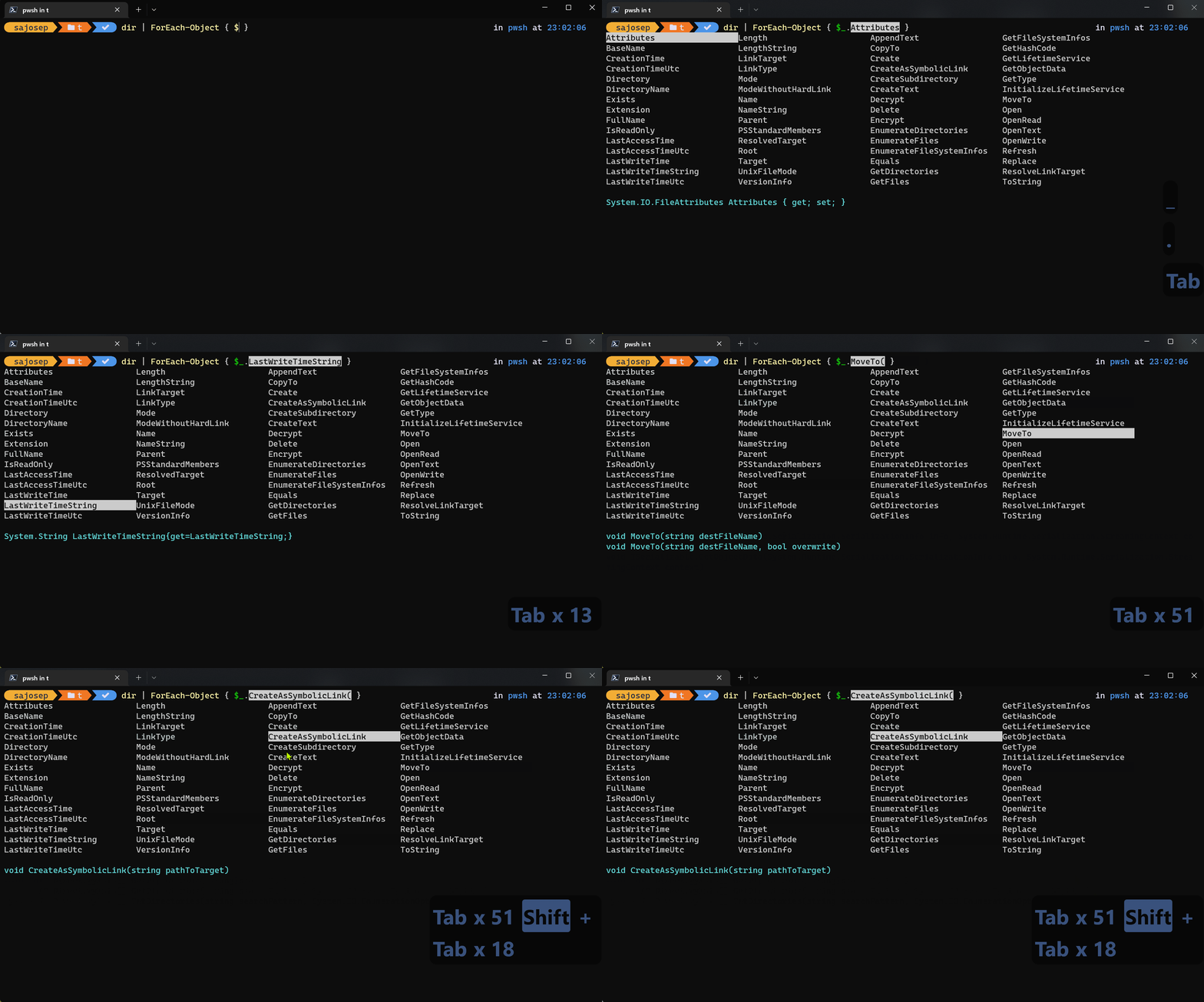
Set-PSReadlineKeyHandler -Key Tab -Function MenuComplete # provide a menu of completions when tab key is pressed
That’s it. Now, relaunch your profile to enjoy a much better PowerShell experience:
Reference:
This post is licensed under CC BY 4.0 by the author.